TL;DR — WebMCP in Chrome (Early Preview)
- Tool-First Web: WebMCP lets websites expose structured tools to in-browser AI agents, so agents can act through typed inputs and structured outputs instead of guessing UI intent from pixels and DOM clicks.
- Two Paths, Same Goal: You can publish tools as Declarative tools (HTML forms annotated with tool attributes) or Imperative tools (JavaScript-registered tools via navigator.modelContext), depending on how your product flow is built.
- Human-in-the-Loop by Default: In the declarative path, Chrome focuses and pre-fills the form when an agent invokes a tool, and the user typically submits manually unless toolautosubmit is enabled. Chrome also exposes events and pseudo-classes to signal agent-driven activity.
- Try It in Chrome 146+: WebMCP currently runs behind a flag in Chrome early preview builds. Enable it in chrome://flags (WebMCP for testing), then use the Model Context Tool Inspector extension and official demos to inspect and execute tools.
- Control and Safety Boundaries: Your site decides which tools exist and what they can do, but you still must validate inputs, keep authorization checks unchanged, and limit tool scopes. Permissions, discovery, and cross-site data flow remain active areas of work, so start with narrow, auditable tools that mirror real user actions.
The Modern Web is Built for Eyes, Not Agents
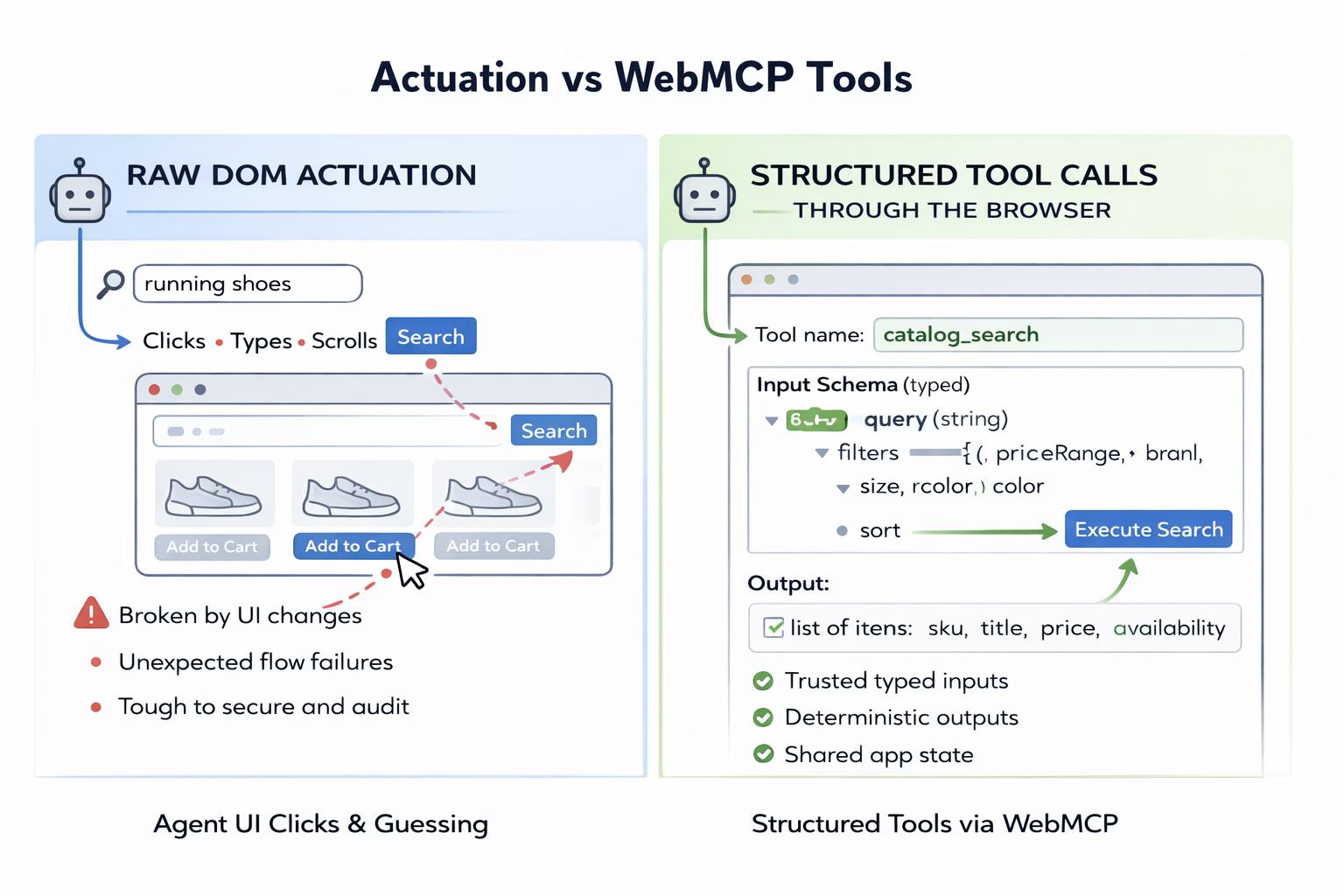
AI agents on the web have a messy problem today. Most agents “use” a site the same way a human does: they look at pixels, guess what the UI means, then click, type, and scroll. That method works until the UI changes, a modal appears, a form validates in an unexpected way, or a flow spans several pages.
WebMCP is Google and the Chrome team’s attempt to give websites a more direct way to communicate with in-browser agents. Instead of forcing agents to interpret the DOM, a site can expose structured tools with typed inputs and structured outputs. The browser can then hand those tools to an agent.
Here is why this matters: structured tool calls are easier to validate, easier to audit, and less brittle than “click the second blue button” automation. WebMCP Chrome support is still an early preview, yet the direction is clear. Google wants an agent-ready website model where your site can be visible and actionable for AI agents through browser-level tooling.
What is WebMCP
WebMCP is a proposed web standard that lets a website expose structured tools to AI agents through the browser, so an agent can trigger site functionality using typed inputs and structured outputs instead of relying on DOM clicking.
The Web Machine Learning Community Group published the WebMCP specification as a Draft Community Group Report. It is not a W3C Standard and it is not on the W3C Standards Track. The same draft defines navigator.modelContext as a Secure Context API surface, so you should expect HTTPS (or localhost) requirements.
To put it simply: WebMCP is a contract between a website and an agentic browser. Your site tells the browser, “These are the actions that matter. These are the inputs I accept. This is what I return.” The browser then makes those tools available to an agent while your UI stays visible to the user.
WebMCP relates to Model Context Protocol (MCP) in a direct way. MCP defines how an agent client can talk to an MCP server that exposes tools and other resources. WebMCP borrows the “tool” idea, yet it moves the tool surface into the web page and browser context. A WebMCP page can act like an MCP-style server where the tools live in client-side script rather than a separate backend service.
What Google and Chrome propose
The problem: agents act through raw UI actuation
Chrome’s WebMCP early preview materials describe the current pattern as “actuation.” An agent simulates user input and tries to complete a task by manipulating the page.
This approach fails for predictable reasons:
- UI changes: A/B tests, layout shifts, renamed buttons, or changed navigation
- Hidden state: the page might store state in client-side code that the agent cannot infer
- Multi-step flows: a small validation failure can break a full run, and the agent may not recover well
You see this today in checkout flows, booking flows, and support portals. A site can be fully functional for humans and still be hard for an agent to work through raw UI actions.
The WebMCP approach at a systems level
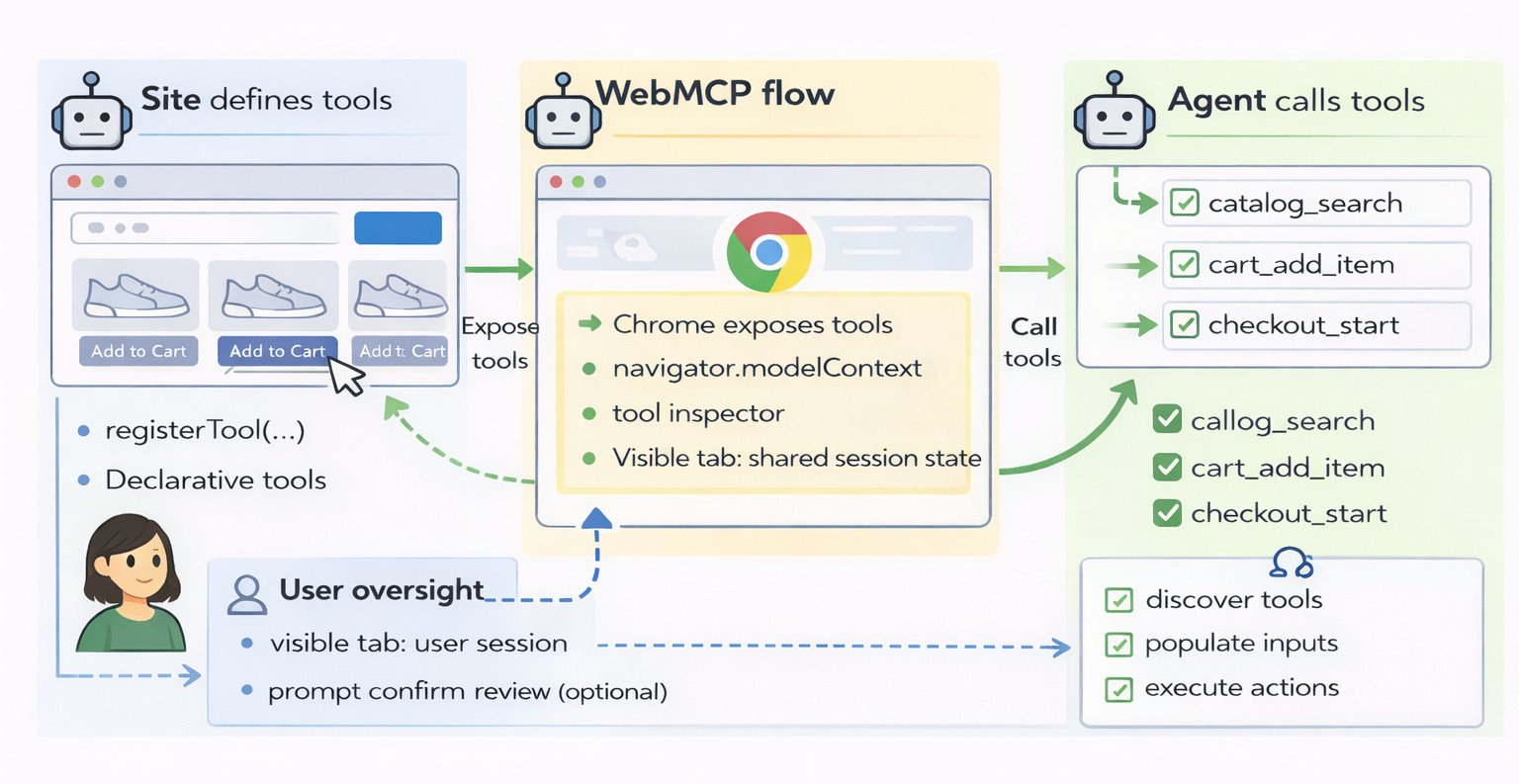
WebMCP flips the control surface. The site defines tools. The browser exposes those tools to an agent. The agent calls tools rather than guessing UI intent.
A “tool” in WebMCP is a callable action with:
- A name and a natural language description
- A structured input schema, based on JSON Schema concepts in the early preview docs
- A structured output that the agent can read and act on
This structure matters because it gives you deterministic inputs and outputs. Your site can validate input types, return structured errors, and keep the UI and tool output aligned.
WebMCP’s design also changes where state and auth live. In a WebMCP flow, the browser tab is still the execution environment. The user is signed in to the site in that tab. The tools run next to the same UI and the same client-side state. That means a tool can reuse the same app code paths you already run for humans.
Next steps: once you understand this contract model, the rest of WebMCP becomes easier. You choose how you expose tools.
Two WebMCP paths: Declarative vs Imperative
Chrome’s early preview describes two ways to expose tools to agents: declarative tools and imperative tools. The intent is simple:
- Declarative WebMCP turns HTML forms into tools with a few attributes.
- Imperative WebMCP lets you register tools from JavaScript.
Declarative WebMCP
Declarative WebMCP targets a familiar web primitive: the HTML form. You annotate a form with attributes that give the tool a name and description. The browser can then compute an input schema from the form fields.
The early preview documentation uses these attributes on the <form> element:
- toolname: the tool name the agent calls
- tooldescription: what the tool does
- toolautosubmit (optional): whether the form should submit without a user click after an agent fills it
You can also add attributes to form-associated elements:
You may also see older proposals that used dashed attribute names such as tool-name and tool-description. The Chrome early preview uses toolname and tooldescription.
- toolparamtitle: maps to a JSON Schema property title; if omitted, Chrome uses the input element’s name
- toolparamdescription: maps to a JSON Schema property description; Chrome can fall back to the form label text or aria-description
One known limitation in the early preview: for a radio button group, you currently need to put toolparamdescription on the first input in the group for it to apply to the parameter as a whole.
What an agent call looks like for declarative tools
When an agent invokes a declarative tool, the browser focuses the associated form and fills the fields. By default, the user still clicks the submit button. If you set toolautosubmit, the browser submits after the agent fills fields.
This design matches the human-in-the-loop focus discussed in WebMCP community group minutes. It keeps the user in control while still letting an agent do the “fill out the boring parts” work.
Chrome also adds agent-aware signals for form submission:
- SubmitEvent.agentInvoked tells you whether an agent triggered the submit.
- SubmitEvent.respondWith(Promise<any>) lets your handler pass structured tool output back to the agent, after you call preventDefault().
Chrome exposes UI hooks too:
- A toolactivated event fires on window once form fields are pre-filled.
- A toolcancel event fires if the user cancels the operation or the form reset() runs.
- Pseudo-classes :tool-form-active and :tool-submit-active let you style the UI during an agent-initiated interaction.
Minimal declarative WebMCP example
typescript<form  toolname="create_support_ticket"  tooldescription="Create a support ticket with a title, product, and problem details."  action="/support/tickets"  method="post">  <label>    Title    <input      name="title"      type="text"      required      toolparamdescription="Short summary of the issue."    />  </label>
  <label>    Product    <select      name="product"      required      toolparamtitle="Product"      toolparamdescription="Which product the issue relates to."    >      <option value="desktop">Desktop app</option>      <option value="web">Web app</option>      <option value="api">API</option>    </select>  </label>
  <label>    Details    <textarea      name="details"      required      toolparamdescription="Steps to reproduce and expected vs actual behavior."    ></textarea>  </label>
  <button type="submit">Submit ticket</button></form>
<script>  document.querySelector("form").addEventListener("submit", async (e) => {    e.preventDefault();
    // Your existing client-side validation    const form = e.target;    const data = Object.fromEntries(new FormData(form));
    const errors = [];    if (!data.title || data.title.length < 8) errors.push({ field: "title", message: "Title must be at least 8 characters." });
    // If an agent triggered this, return structured output back to the agent.    if (e.agentInvoked) {      if (errors.length) {        e.respondWith(Promise.resolve({ ok: false, errors }));        return;      }
      // Send to your backend as usual.      const res = await fetch(form.action, {        method: "POST",        headers: { "Content-Type": "application/json" },        body: JSON.stringify(data),        credentials: "include",      });
      if (!res.ok) {        e.respondWith(Promise.resolve({ ok: false, error: "Ticket creation failed." }));        return;      }
      const ticket = await res.json();      e.respondWith(Promise.resolve({ ok: true, ticketId: ticket.id }));    } else {      // Human path: you can still do your normal UX here.      form.submit();    }  });</script>
That example shows the point of declarative tools: you keep normal form semantics, you add a tool contract, and you return a machine-readable result when an agent is involved.
Imperative WebMCP
Declarative tools work well when a form maps to the action. Many modern web apps do not work that way. They rely on client-side routing, stateful UI, and actions that do not map to a single form submit. That is where the imperative WebMCP API fits.
In Chrome’s early preview, the imperative API hangs off window.navigator.modelContext and includes these methods:
- registerTool(...): add one tool without removing others
- unregisterTool(name): remove a tool by name
- provideContext({ tools: [...] }): replace the full tool set for the page, which helps when app state changes
- clearContext(): remove all registered tools
A registered tool includes metadata and an execute handler. The early preview example uses:
- name
- description
- inputSchema (JSON Schema-like structure)
- annotations (such as readOnlyHint)
- execute(args) which returns structured content
Minimal imperative WebMCP example
typescript// Register a tool once the user is signed in and the app is ready.window.navigator.modelContext.registerTool({  name: "add_to_cart",  description: "Add an item to the cart using a SKU and quantity.",  inputSchema: {    type: "object",    properties: {      sku: { type: "string", description: "Product SKU, like 'SKU-1234'." },      quantity: { type: "number", description: "How many items to add." }    },    required: ["sku", "quantity"]  },  execute: async ({ sku, quantity }) => {    // Reuse your existing app logic.    const res = await fetch("/api/cart/items", {      method: "POST",      headers: { "Content-Type": "application/json" },      body: JSON.stringify({ sku, quantity }),      credentials: "include"    });
    if (!res.ok) {      return {        content: [{          type: "text",          text: "Cart update failed. Ask the user to review the cart page."        }]      };    }
    const cart = await res.json();    return {      content: [{        type: "text",        text: `Added ${quantity} of ${sku}. Cart now has ${cart.totalItems} items.`      }]    };  }});
This pattern matches the real needs of SPAs:
- You can register tools only when the UI state supports them.
- You can swap tool sets when the user navigates to a new view.
- You can return structured results that match your product flow.
If you already built MCP servers, the imperative WebMCP shape should feel familiar. You still need to treat tool input as untrusted and validate it. The difference is that the tool runs in the page and can reuse your signed-in context.
Where WebMCP is available in Chrome today
WebMCP Chrome support is in an early preview phase. Chrome’s own blog post says WebMCP is available for prototyping to Early Preview Program participants. Chrome’s early preview documentation says WebMCP is behind a flag and requires Chrome version 146.0.7672.0 or higher. Many teams will first reach builds in that range through Chrome Canary. You can turn it on through:
chrome://flags
Then search for “WebMCP for testing”, switch it on, and relaunch Chrome.
Testing is easiest with the Model Context Tool Inspector. The early preview doc describes it as a Chrome Extension that can:
- List tools registered by imperative and declarative paths
- Show tool descriptions and input schemas
- Execute tools manually with JSON arguments
- Simulate agent calls using Gemini via an API token
The extension itself relies on an experimental navigator.modelContextTesting Web API to inspect tools in the active tab.
How to try it end-to-end
You can try WebMCP early preview in under 10 minutes.
- Install a compatible Chrome build
You need Chrome 146.0.7672.0 or higher. - Turn on the WebMCP flag
Open: chrome://flags
Search for “WebMCP for testing”, switch it on, and relaunch. - Install the Model Context Tool Inspector extension
Open the Chrome Web Store and search for “Model Context Tool Inspector”. - Open a demo that exposes WebMCP tools
Use the GoogleChromeLabs demo for the React flight search app: https://googlechromelabs.github.io/webmcp-tools/demos/react-flightsearch/ - Inspect tools
Open the extension side panel. You should see registered tools with names, descriptions, and JSON input schemas. - Execute a tool manually
Select a tool such as searchFlights. Provide JSON arguments and run it. The extension calls the tool directly. - Try a natural language call through the extension
Set a Gemini API token in the extension, enter a prompt, and send it. The extension prompts a Gemini model with the tool definitions and calls the chosen tool with the model’s arguments.
If the demo only supports a narrow set of values, that is expected. You are testing the tool surface, not the site’s business data.
What WebMCP makes possible
WebMCP is not “agents doing anything they want.” It is a way for a site to publish a safe, typed tool surface for actions that already exist in the product.
Here are product scenarios that map cleanly to WebMCP tools.
Scenario 1: Ecommerce product search and filters
Tool name: search_products
Inputs:
- query (string)
- category (string or enum)
- priceMin (number)
- priceMax (number)
- inStock (boolean)
Output shape:
- Array of results with productId, title, price, availability, url
Why it beats DOM clicking:
- The agent passes filter intent as data, not as a chain of UI actions.
- Your code returns a stable result shape even if the UI layout changes.
Scenario 2: Configure a product and add to cart
Tool name: configure_and_add_to_cart
Inputs:
- productId (string)
- variant (object with size, color, region, plan)
- quantity (number)
Output shape:
- cartItemId
- cartUrl
- warnings (array, optional)
Why it beats DOM clicking:
- Your variant logic can live in one place.
- You can return warnings for out-of-stock variants without forcing an agent to parse UI error states.
Scenario 3: Customer support ticket creation
Tool name: create_support_ticket
Inputs:
- title (string)
- product (enum)
- details (string)
- attachments (optional)
Output shape:
- ticketId
- status
- nextSteps (string)
Why it beats DOM clicking:
- The tool can capture structured fields and return structured validation errors.
- A support form can stay human-friendly while still being machine-callable.
Scenario 4: Travel search and booking steps
Tool name: search_flights
Inputs:
- origin (string)
- destination (string)
- outboundDate (string)
- inboundDate (string)
- passengers (number)
- tripType (enum)
Output shape:
- List of flight options with offerId, price, segments, cabin, baggage
Why it beats DOM clicking:
- Date pickers, filters, and sort controls change often.
- A tool call avoids brittle UI workflows and returns data the agent can compare.
Scenario 5: Admin and settings actions
Tool name: run_diagnostics
Inputs:
- area (enum: auth, billing, sync, network)
- detailLevel (enum)
Output shape:
- results array with check, status, message
- actions array with suggested next actions
Why it beats DOM clicking:
- Admin pages hide actions behind tabs and nested menus.
- A tool gives a clean entry point for guided troubleshooting.
Security, control, and constraints
WebMCP raises an obvious question: who controls what?
A practical way to think about it:
- The site defines what tools exist, what inputs they accept, and what outputs they return.
- The browser decides how an agent gets access to those tools and how user control works.
- The agent chooses when to call tools and what arguments to send.
WebMCP community group minutes show a focus on human-in-the-loop use cases, at least at the start. The WebMCP proposal repo also lists headless browsing and autonomous workflows as non-goals today. That tells you the direction: Chrome wants user-visible, user-controlled tool calls.
Here are constraints and risk areas you should plan for.
Browsing context required
The early preview doc says tool calls run in JavaScript inside a browsing context such as a tab or a webview. There is no support for calling tools without visible browser UI. If you want a server-side agent that runs without a browser window, MCP servers remain the better fit.
UI and state must stay consistent
If an agent calls a tool, your UI still needs to reflect the result. That sounds obvious, yet it becomes work in complex SPAs. You need a clean path where a tool call triggers the same state transitions as a human action.
A good mental model: tool calls are just another input channel. Your state store should not care whether the trigger was a click or another input event, or execute().
Input is still untrusted
A WebMCP tool runs in the user’s tab, yet the arguments are still untrusted data. Treat them like any other input:
- Validate types and value ranges in code
- Return structured errors that an agent can correct
- Avoid “magic” parameters that bypass authorization
You also need to protect high-risk actions with the same UI and server-side checks you already rely on. WebMCP does not replace auth. It sits on top of your existing auth model.
Permissions and user awareness
The WebMCP proposal repo flags permissions and trust boundaries as an open topic. A site is exposing information about its capabilities when it registers tools. A tool call can also send user data back to the site. Browsers may add prompts or controls around these steps.
You should assume that user-visible cues will matter. The declarative path already leans into that with form focus, user submit by default, and CSS hooks to show agent-initiated activity.
Cross-origin data flow
Agents often string tasks across sites. The WebMCP proposal repo points out that tool output from one site can become input to a tool on another site. Users may want that. Security design needs to keep the user aware of what data flows where.
No standard discovery story yet
Both the early preview doc and the WebMCP proposal repo say there is no built-in mechanism for a client app to discover which sites expose tools without visiting them. The community is exploring ideas like search engine indexing or directories. You should plan as if discovery is manual for now.
External agent access is not settled
WebMCP minutes discuss how external agents might connect to WebMCP tools without injecting scripts into pages. The group resolution says JavaScript injection by external agents to interact with WebMCP is not supported. The same minutes discuss higher-level hooks via extension APIs or automation protocols.
In short: WebMCP is about a browser-mediated tool surface. It is not a “let any third party run JS in my page” model.
Partnering with Lexogrine
Lexogrine is an AI agent development company. We help teams build AI agents for their businesses and turn real product flows into safe WebMCP tools, wire them into existing web app state, and validate that the site stays usable for humans while becoming visible and actionable for AI agents. If you want to consult an agent-ready website built around WebMCP Chrome early preview concepts, let's talk!